
I am writing this blog to let you know how to add a user in Google Analytics. Here I am explaining it using my company name, i.e. “Brandconn Digital”. Let’s add is as a user admin in the website Google analytics account, which will allow us to see the full customer cycle/journey that your customers go through.
To get started, follow these steps:
1. Create an account or sign in to your already existing Google Analytics account. If you don’t have a Google account, click here to set one up.
- Go to Google Marketing Platform
- Click Sign in to Analytics and enter the email address and password of your account
2. Click Admin, and navigate to your account
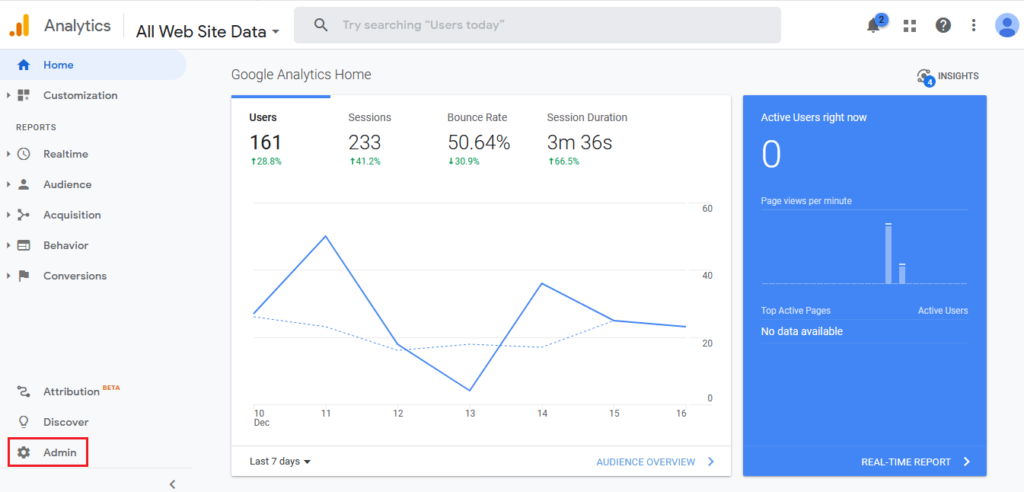
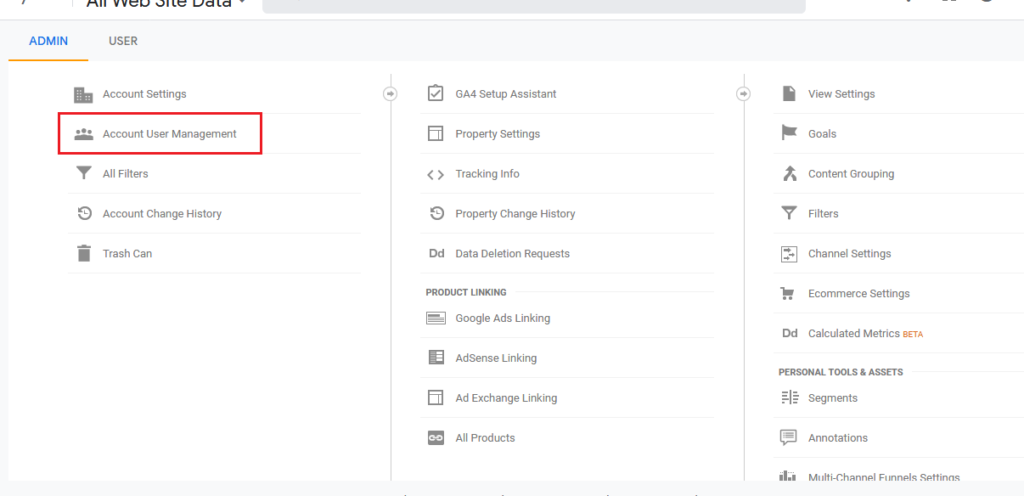
3. After entering in admin, click Account User Management under the Account column.
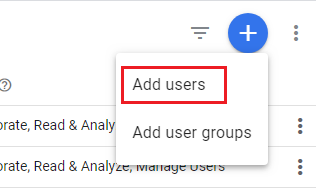
4. The Property Users screen will show up. Click on the + symbol in the top right hand corner and select “Add users” from the dropdown menu.
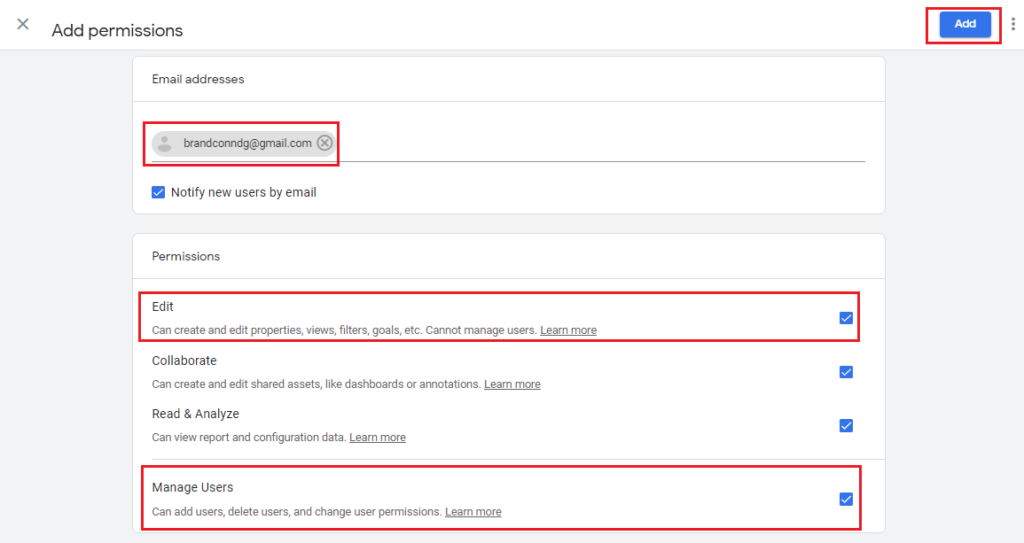
5. Under Add permissions, enter in brandconndg@gmail.com
- Select the permissions Edit, Collaborate, Read & Analyse and Manage Users. Note, to select all of these you just need to select Edit and Manage Users to on
- Select Notify this user by email to send a notification by email
- Click Add
Good job! You have successfully added Brandconn Digital as a Manager User in your analytics account. Now, we will be able to check your website traffic source of mediums and other things.
You must also read: How to add a website in Google Analytics?